Watch our tutorial video on templates and advanced products feature here:
You can create unique templates for your campaigns, each having a distinct look and feel which serves a unique purpose. This empowers you to do many different things on your platform.
To get started and create a template go to MyKoalect and navigate to 'Templates' > 'Create new template' > Name your template and start customising your template.
There are multiple things to customize:
- You can edit the copy of specific texts
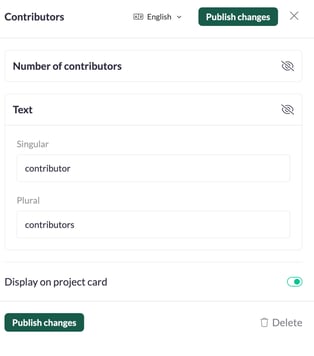
- You can show/hide elements on the project page
- You can show/hide elements on the project card
See example for the element 'contributors':
Play around with it to explore the possibilities.
Tip: Remember to hit 'Publish changes' after each modification.
Understanding elements
Member navigation
Change the order and text of the member navigation, offering a clear navigation for project owners.
-
Project: Tab visible to all visitors of the project page.
- Contributions: Central hub for donor data.
- Products: Tab where project owners can manage the products available through the project page.
- QR codes: Exclusive for Koalect SCAN clients, download project-specific QR codes.
- Settings: Tab where project owner customise details about the project.

Head
Control the visibility of the project title on both the project page and project card. Customise to your preference.

Main
Manage the visibility of the project image on both the project page and project card. Also adjust its positioning by creating subtitles above and below the image.
- Cover image: Allow users to add an image for their project.
- Title: Add a subtitle to each project page.
- Text: Add text to each project page.
- Products: Allow users to select desired products. Orders will be finalised in the contribute form.
- Progress bar: Display the total funds raised in a bar that covers the whole main section.
- File download: Upload a file in the template that allows project owners and/or users to download a file.
- Divider: Add a separator to create distance between elements.
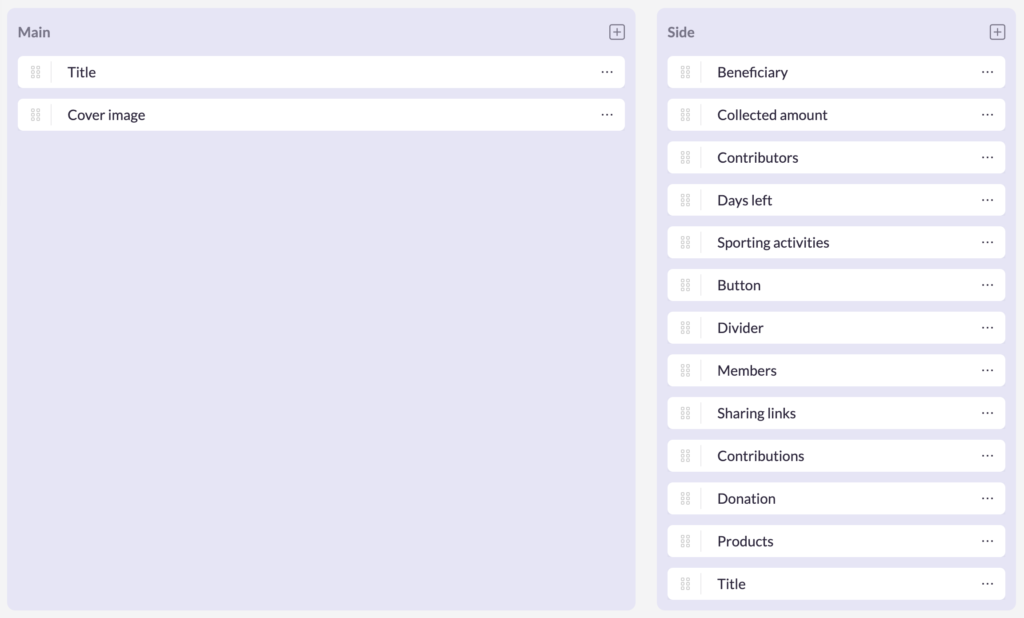
Side
Tailor the side bar to your needs by editing specific copy or hiding, removing and changing the order of the elements explained below:
- Beneficiary: Spotlight project beneficiaries (learn more about the benefiting feature).
- Collected amount: Display the total funds raised.
- Contributors: Showcase the number of unique contributors.
- Days left: Highlight days remaining until the project ends.
- Sporting activities: Showcase athletic achievements linked to the project.
- Button: Lead users to the contribute form.
- Divider: Add a separator to create distance between elements.
- Members: List project owner accounts.
- Sharing links: Include social media links for easy sharing.
- Title: Include a heading.
- Text: Include a text.
- Contributions: Display contribution count.
- Donation: Allow users to preset their donation amount for the contribute form.
- Products: Allow users to select desired products. Orders will be finalised in the contribute form.
- File download: Upload a file in the template that allows project owners and/or users to download a file.
- Start date: Showcase the start date of the project page.
Navigation
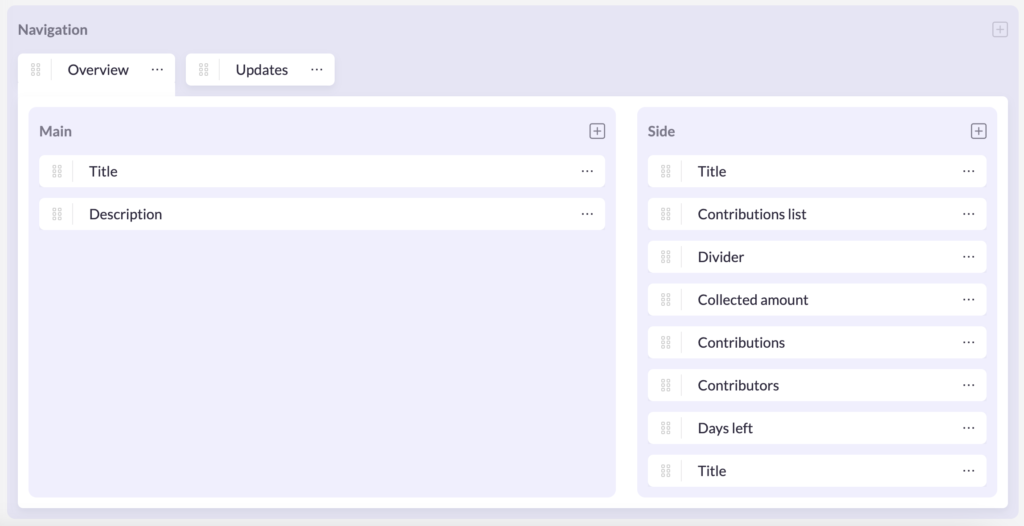
In the navigation tab you can allow project owners to write project descriptions and updates to engage with supporters. You can even add extra tabs with file downloads so project owners and other users can access this information.
Tailor this tab to your needs by hiding, removing and changing the order of the elements explained below:
Overview tab:
-
Main
- Title: Include a heading.
- Text: Include a text.
- Description: Allow users to write a project description.
- Cover image: Allow users to add an image for their project.
- Updates: Allow project owners to engage with users through email updates.
- File download: Upload a file in the template that allows project owners and/or users to download a file.
- Progress bar: Display the total funds raised in a bar that covers the whole main section.
-
Side
- Title: Include a heading.
- Text: Include a text.
- Contribution list: Showcase contributors' names.
- Divider: Add a separator to create distance between elements.
- Collected amount: Display the total funds raised.
- Contributions: Display contribution count.
- Contributors: Showcase the number of unique contributors.
- Donation: Allow users to preset their donation amount for the contribute form.
- Days left: Highlight days remaining until the project ends.
- Products: Allow users to select desired products. Orders will be finalised in the contribute form.