Project owners have the ability to personalise their project pages with elements such as a custom cover photo and description text.
Tip: As an Admin in MyKoalect, you can hide or delete project pages in your backoffice. If you wish to edit also the contents of the project pages of your supporters yourselve, ask your Customer Success manager or support@koalect.com to grant you the rights of 'Super Admin'.
The default project page consists of four tabs: 'Project', 'Contributions', 'QR code', and 'Settings'. The following features are located in each tab:
In the ‘Project’ tab:
- Change the ‘Title’ of this project.
- ‘Edit cover photo’: (Best dimensions for a project cover image are 900 *600 pixels).
- ‘Collected amount’: Shows the sum of all contributions to the project.
- Progress bar: Visualisation of the collected amount compared to the goal of the project.
- ‘Number of contributions’.
- ‘Number of contributors’.
- Days left before the project ends.
- Button with call to action: This button leads to the ‘contribution form’.
- ‘Organisers’: Shows organisers of the project.
- Share options.
- ‘Overview’: Description of the project.
- ‘Updates’: Users who have interacted with the page can receive these updates in their mail.
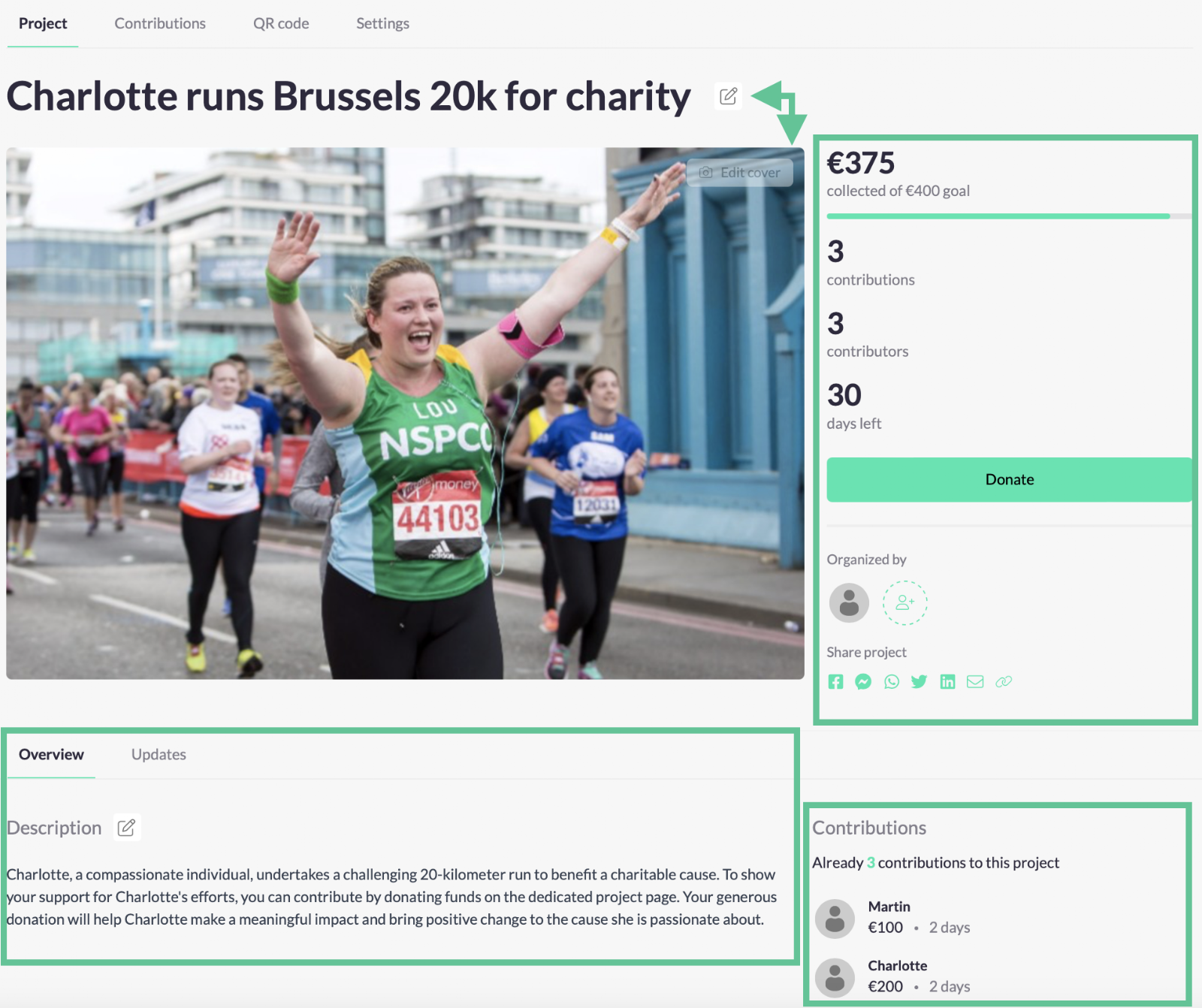
A project owner can edit his own title and description by clicking on the 'editing' icon.
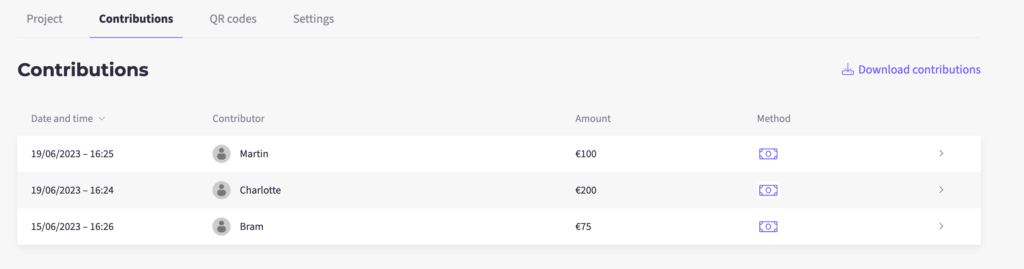
Under the ‘Contributions’ tab:
The project owner will find a list of all contributors to his project: date and time, first name, amount and payment method. He can also download a contributions list (in .csv or .xls).
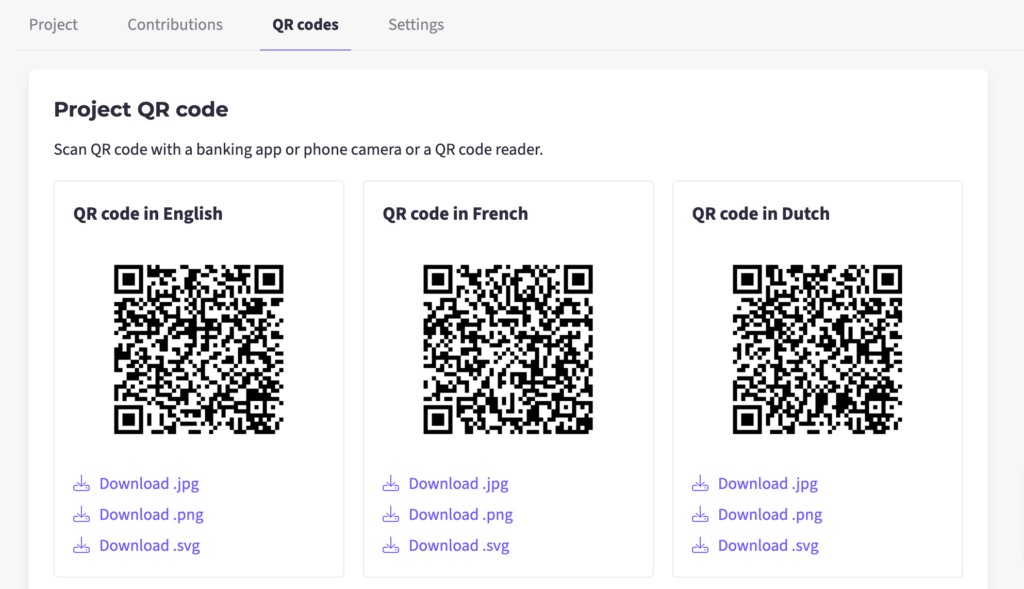
Under the ‘QR code’ tab:
Only if KOALECT SCAN is activated on your account.
The project owner can download a QR code for receiving donations for his project.
Project QR code: Can be scanned with a phone camera, bank apps, all payment apps and redirects the user directly to a payment. The payment includes date fields to capture necessary user data.
Payconiq/Bancontact QR code: Can be scanned with payconiq app only and redirects the user to a wire transfer directly. This is considered the fastest option but it does not capture all user data.
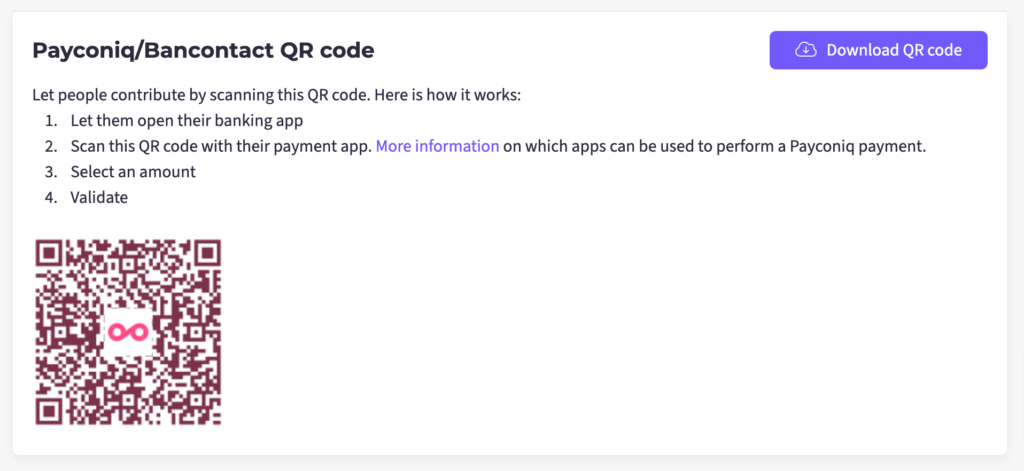
Tip: If you want to receive donations, use ‘Project QR codes’ to capture all necessary data for tax receipts. If you are selling products on the street, and don’t need detailed information about your contributors, use Payconiq/Bancontact QR codes.
Under the ‘Settings’ tab:
The project owner can change some settings of his project.
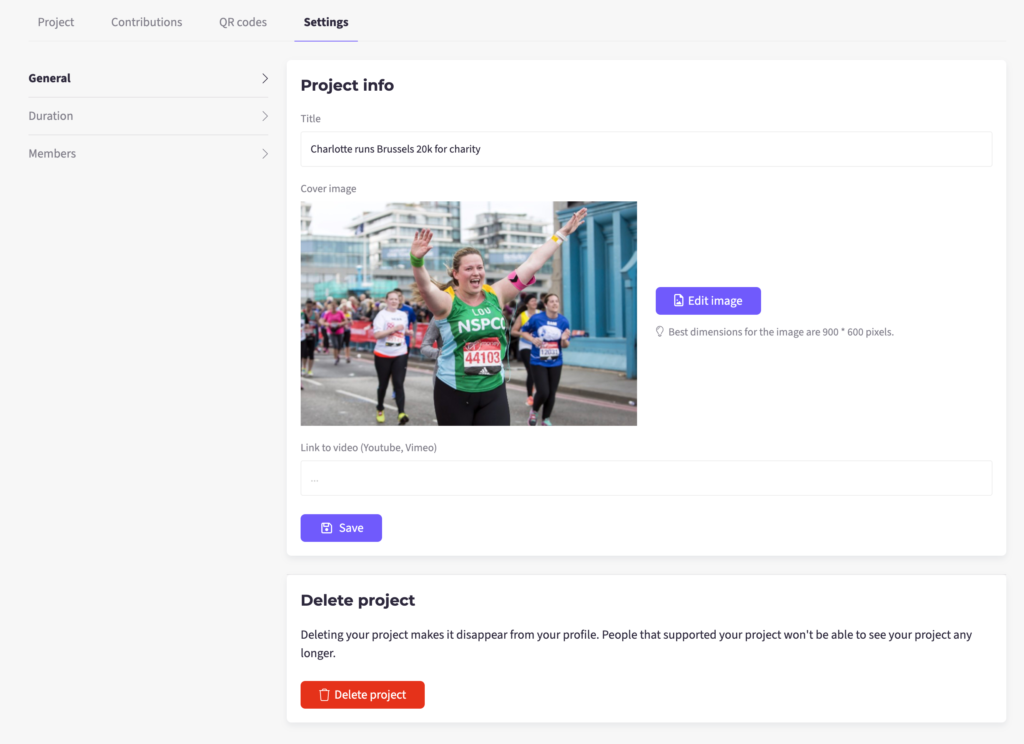
- General:
- Change the ‘Title’ of this project.
- Cover image or video
- Delete project: Deleting your project makes it disappear from your profile. People that supported your project won't be able to see your project any longer.
- Duration: change the end date of the project.
- Members: to invite new members to the project.