
When editing a page in the page builder, you have access to a wide range of elements that allow you to customize and enhance your content effectively. This article introduces you to each of these elements and explains how to use them to create engaging and dynamic pages.
1. Banner
The Banner element allows you to insert a full-width visual on your page. You can insert a title, text, and a call-to-action button.
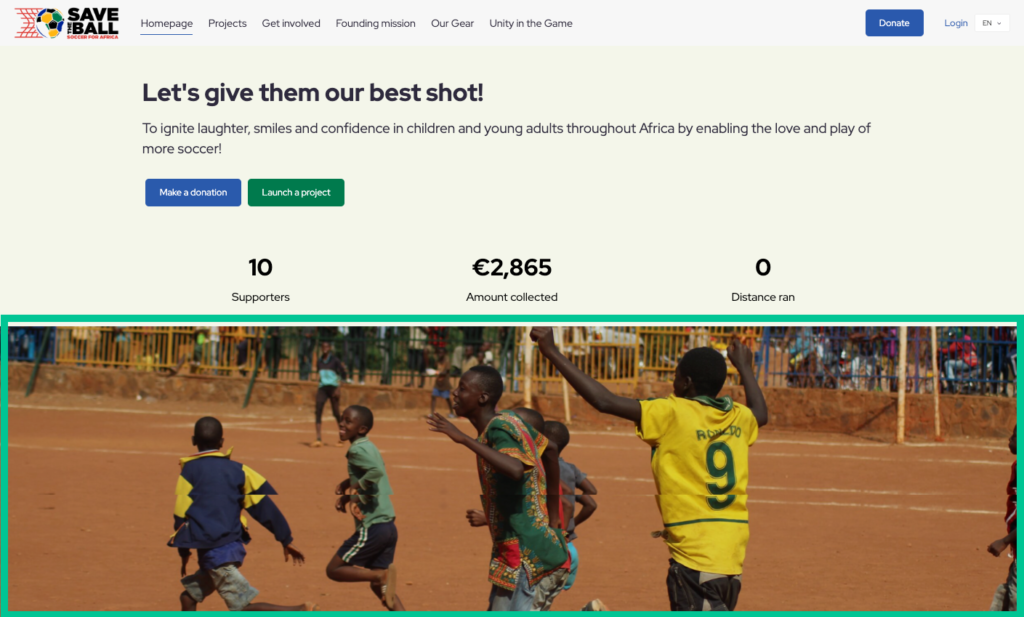 Example 1
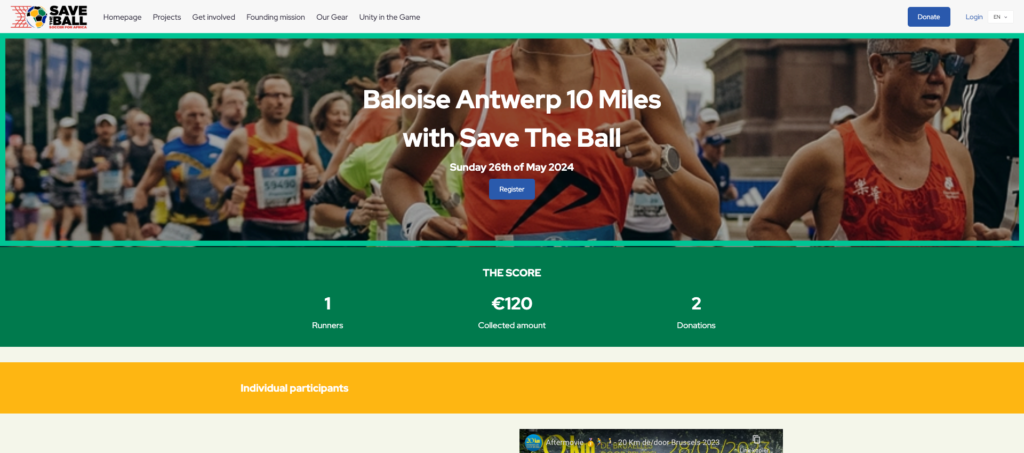 Example 2
2. Campaigns
Use the Campaigns element to showcase one or multiple campaigns on your page. This element enables users to create their own project pages through a call-to-action button. You can also add text and highlight campaigns to expand them to cover the full width of the screen.
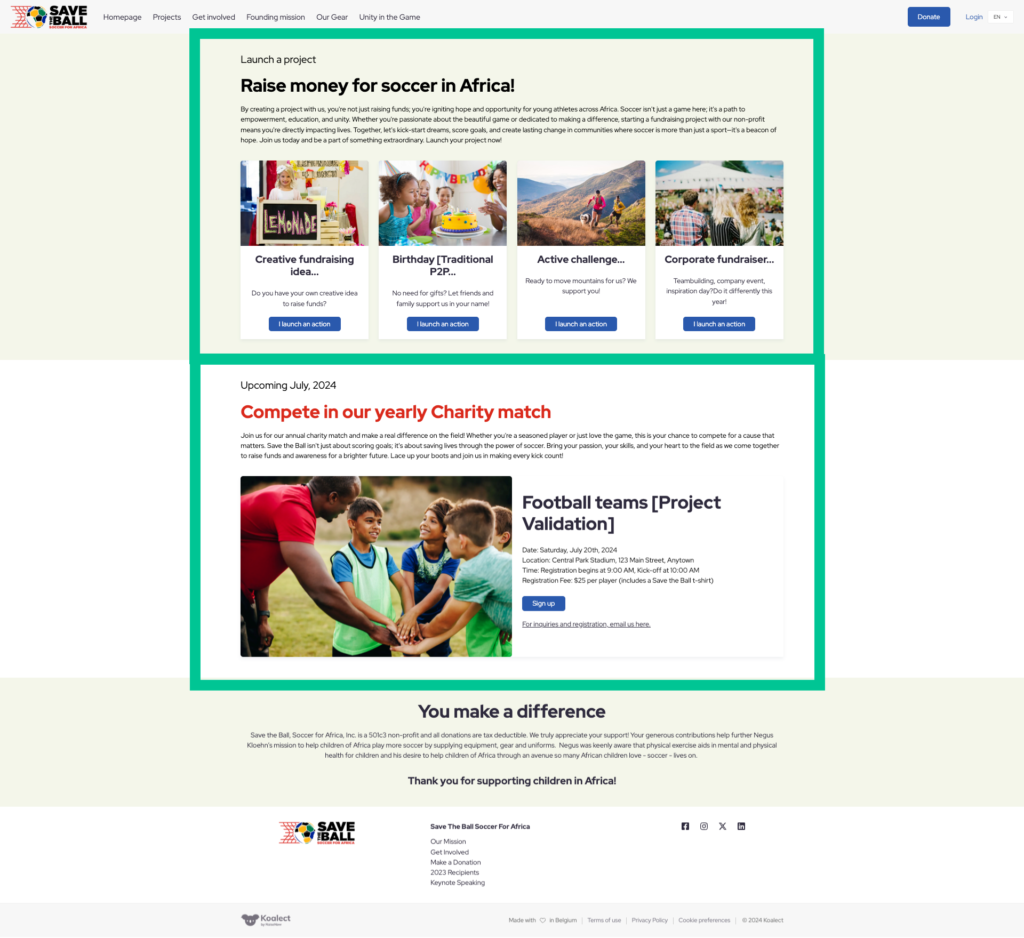 Example of regular campaigns and a highlighted campaign
3. Counter
The Counter element displays key metrics related to your campaigns, forms, or beneficiaries. You can showcase statistics such as:
- Contributors
- Contributions
- Amount Collected
- Projects
- Project Members
- Days Left
- Sporting Statistics
Additionally, you can include descriptive text to provide context for these metrics.
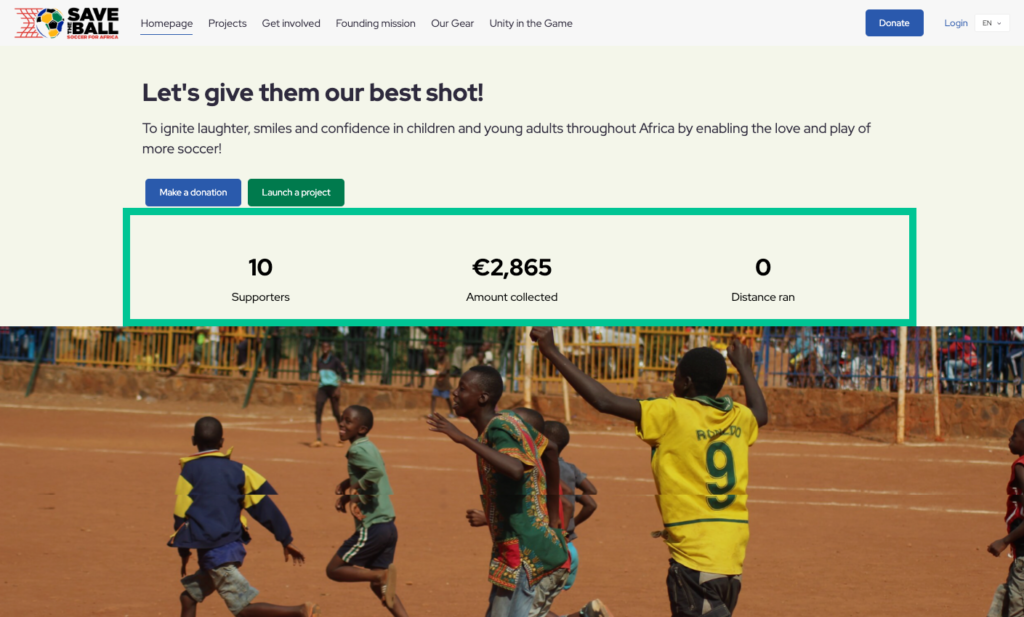 Example 1
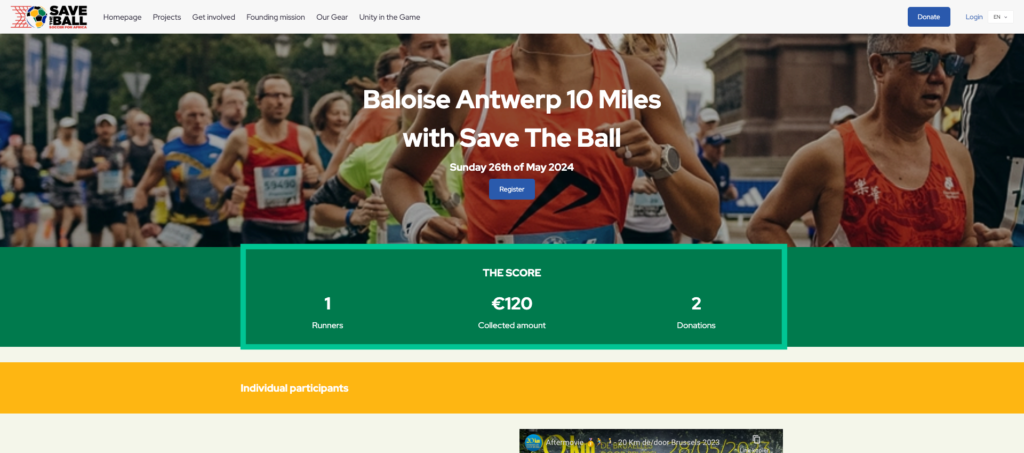 Example 2
4. Divider
The Divider element helps you create visual separation between different sections of your page, enhancing readability and organization.
5. FAQ
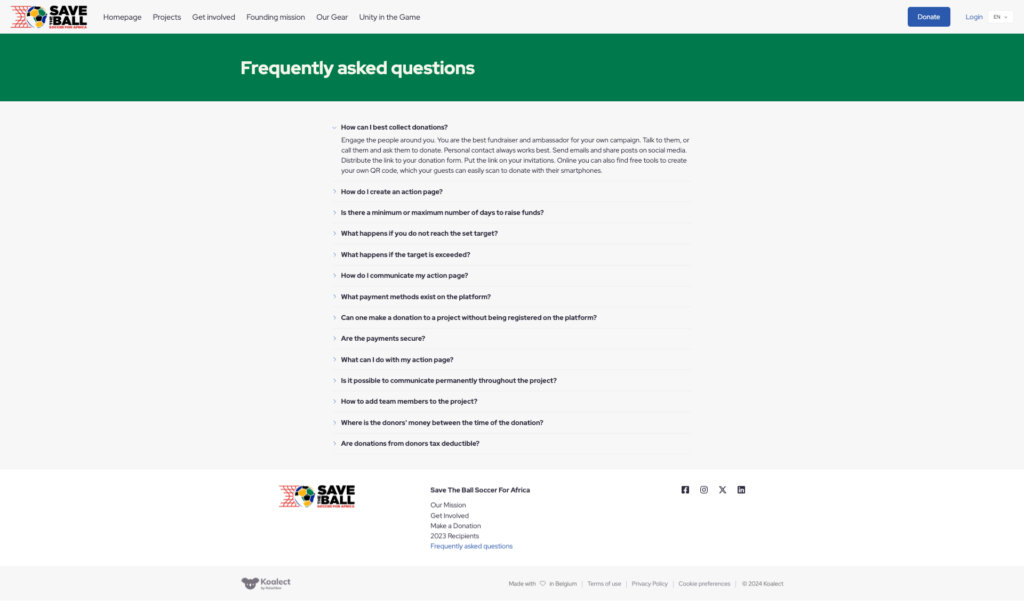
With the FAQ element, you can add questions and answers presented in a dropdown format. This is useful for addressing common questions and providing additional information without cluttering your page.
6. How It Works
The How It Works element allows you to display a series of steps side by side. It's ideal for outlining processes or instructions and can also be used to create columns combining text and images for a structured layout.
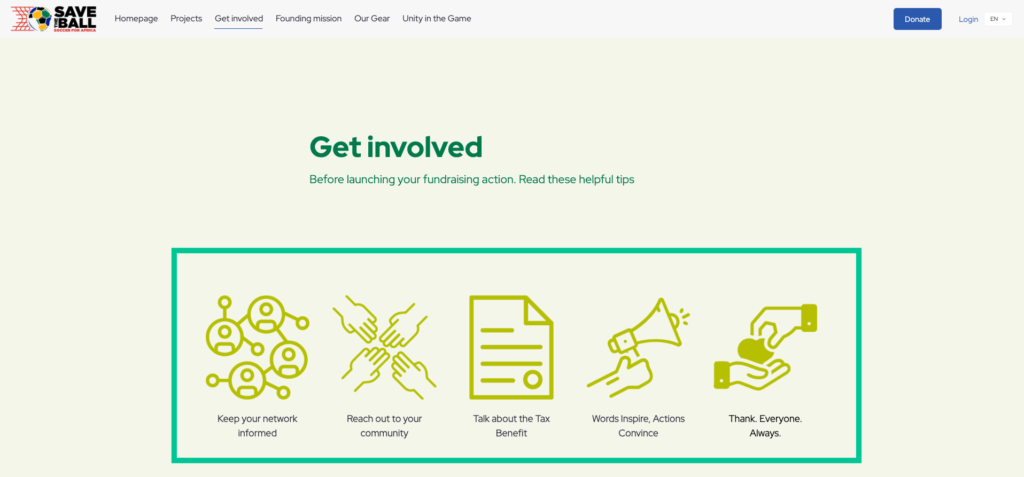 Example 1
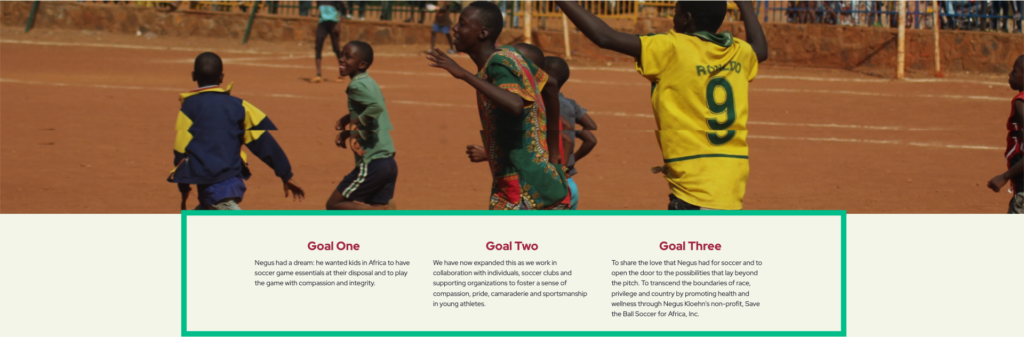 Example 2
7. Media
Use the Media element to showcase images or videos that enhance your content and engage your audience visually.
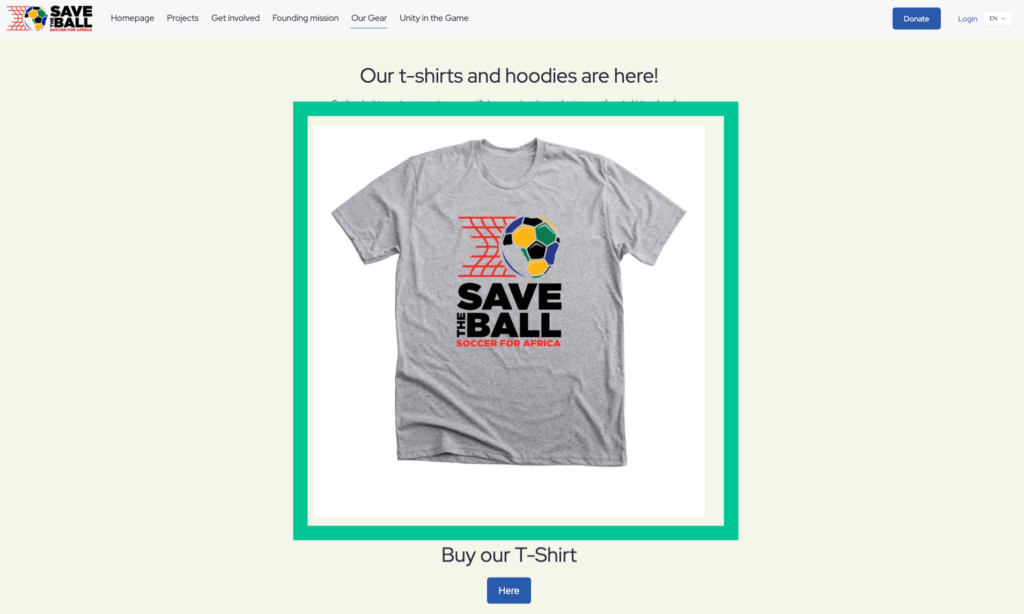 Example 1
8. Media + Text
The Media + Text element combines visuals with accompanying text and a button. This is perfect for highlighting specific information alongside relevant imagery or videos.
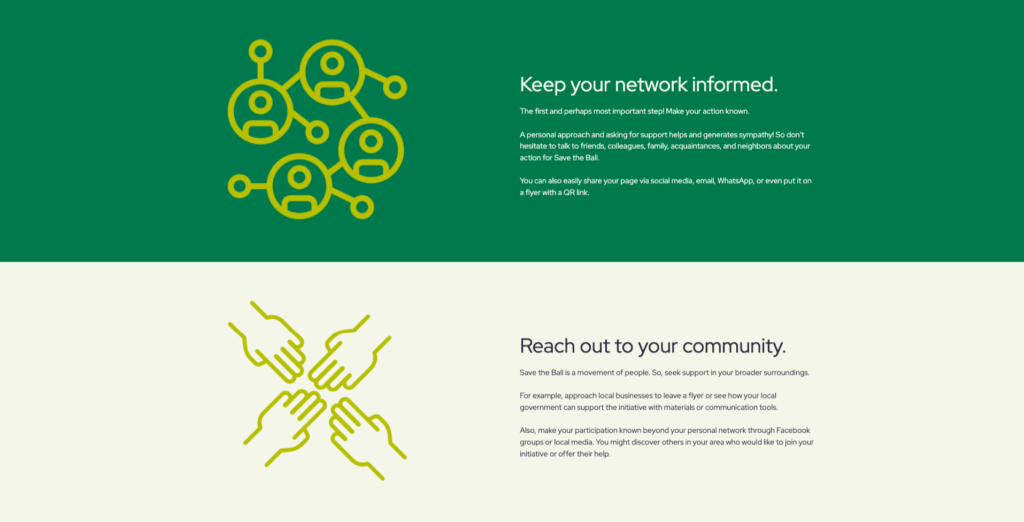 Example 1
9. Project Selection
The Project Selection element enables you to display a curated selection of projects. You can filter projects based on campaigns or beneficiaries, add search functionality, and sort projects according to specific criteria to help users find what they're interested in.
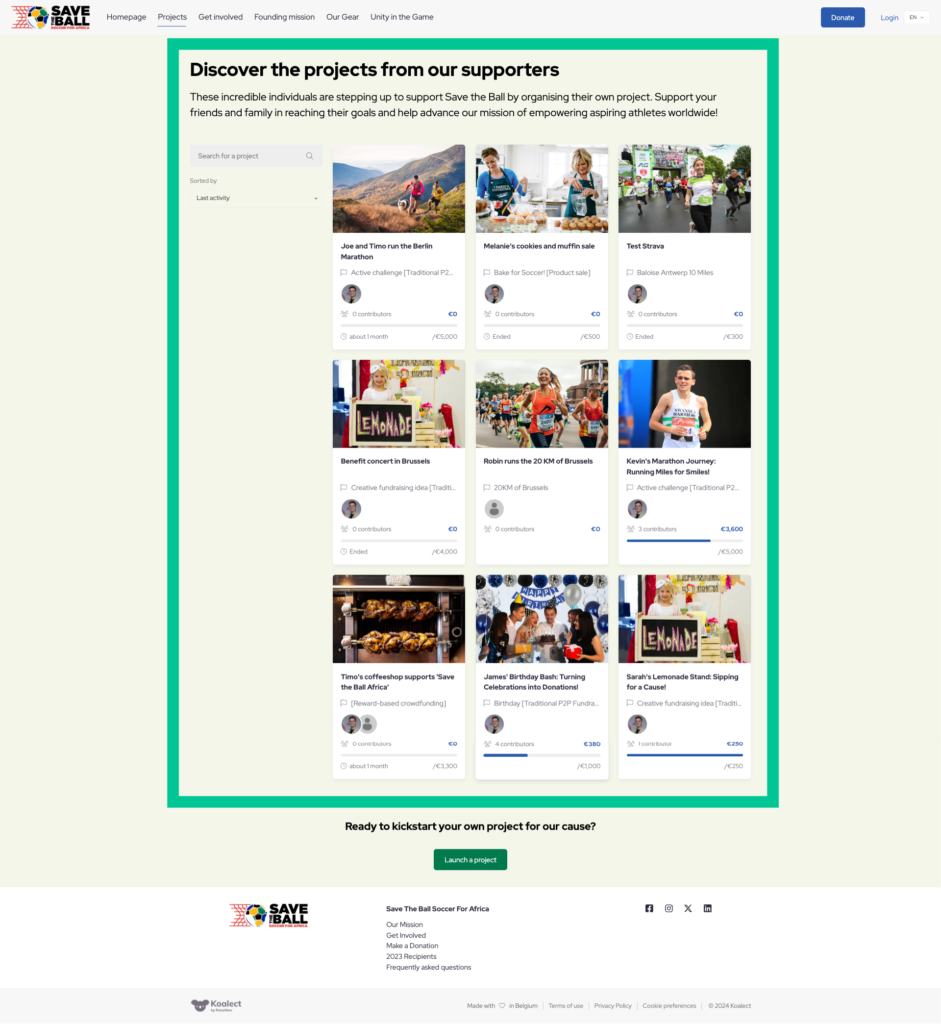 Example 1
10. Quote
Highlight impactful statements using the Quote element. You can add the author's name, role, and image alongside the quote to add credibility and personalization.
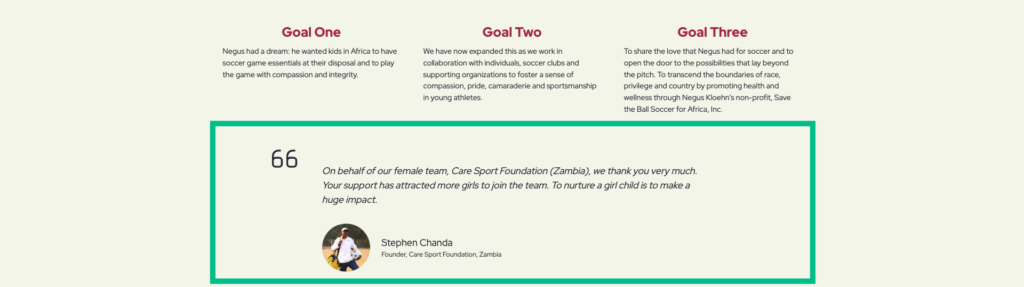
11. Sponsors
The Sponsors element allows you to feature sponsor logos in a carousel format. Each logo can include the sponsor's name and be linked to their website. You can also add descriptive text to provide additional context or appreciation.

12. Text
The Text element is a simple yet versatile block for adding written content to your page. Use it for paragraphs, headings, lists, and more to convey information effectively.
How to Add ElementsTo add any of these elements to your page:
- Navigate to the section of the page where you want to insert the element.
- Click on the "Add element" button to open the elements menu.
- Select the desired element from the list.
- Customize the element by adding text, images, videos, and other relevant information.
- Publish your changes to make them live on your page.
By effectively utilizing these elements, you can create engaging, informative, and visually appealing pages that resonate with your audience and achieve your campaign goals.