
Sometimes, you need more than just simple forms. You might want to show or hide certain questions based on what users select or enter.
Example: Only ask for a dog’s name if the user confirms they own a dog by clicking a checkbox.
The goal is to ask for the dog's name only if the user says they own one. To do this, add two elements:
- Checkbox: Ask to click the checkbox if they own a dog.
- Question: Ask for the dog's name, only if they checked the box.
1.1 Checkbox
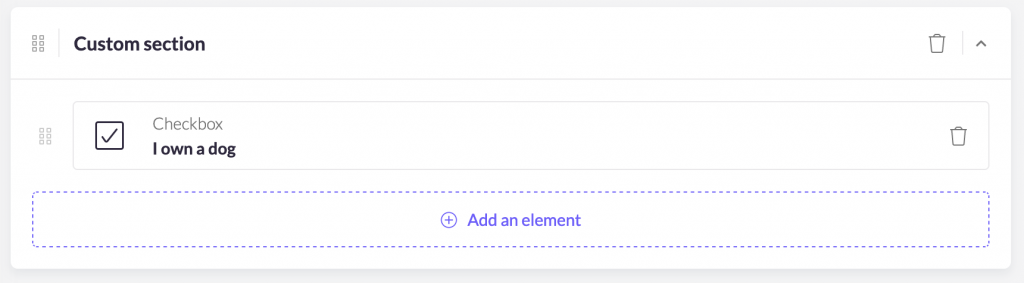
First, add a checkbox for users to confirm if they own a dog.
- Add an element

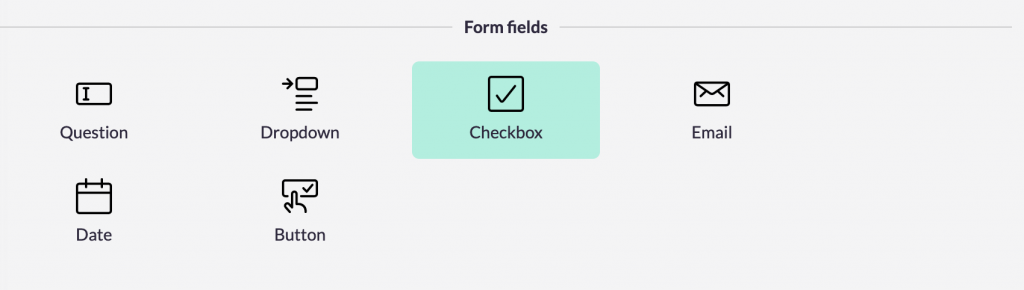
- Select "Checkbox"
- Label it: "I own a dog"
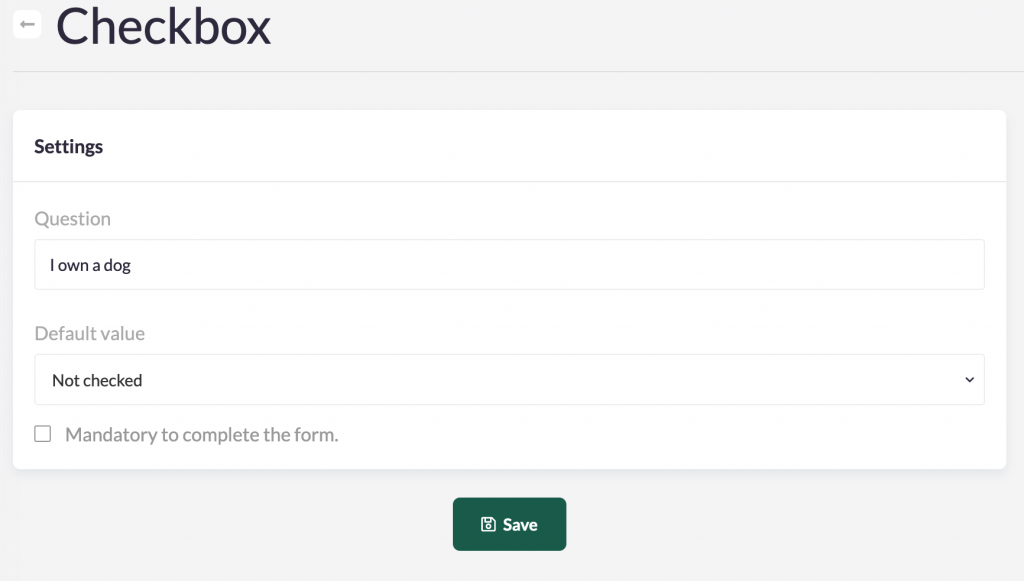
1.2. Question
Next, add a question for the dog’s name, but only show it if the checkbox is checked.
- Add an element
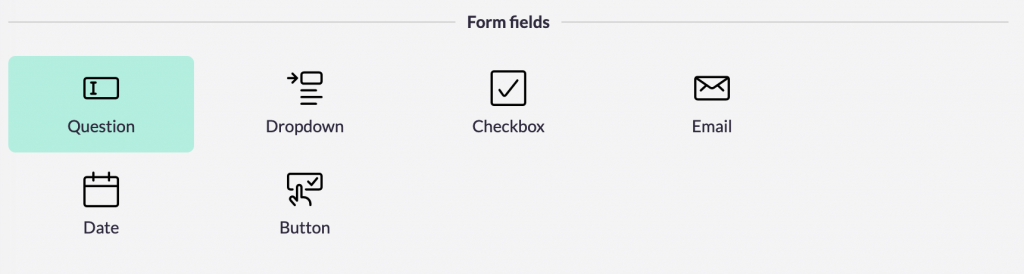
- Select "Question"
- Write your question (e.g., "What's your dog's name?")
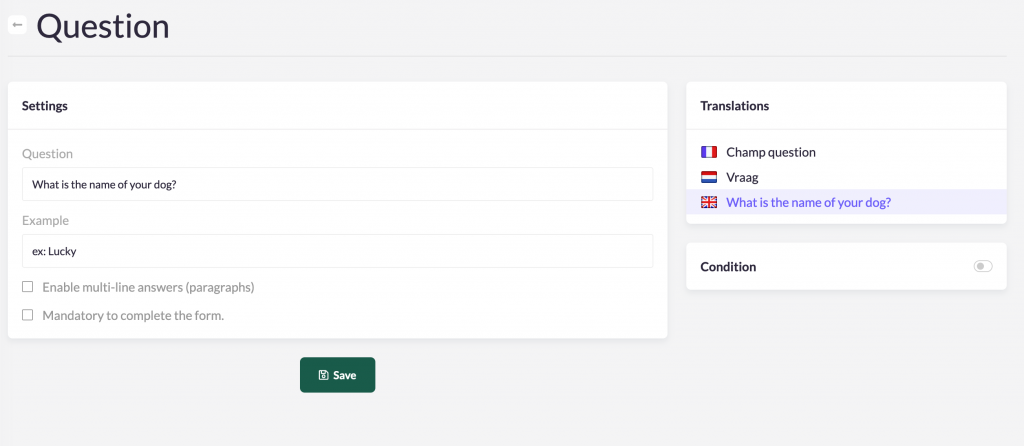
- Set up the condition:
- Toggle the condition on
- Click "Add condition"
- Select the "I own a dog" checkbox
- Set the operator to "Equals"
- Set the value to "Checked"
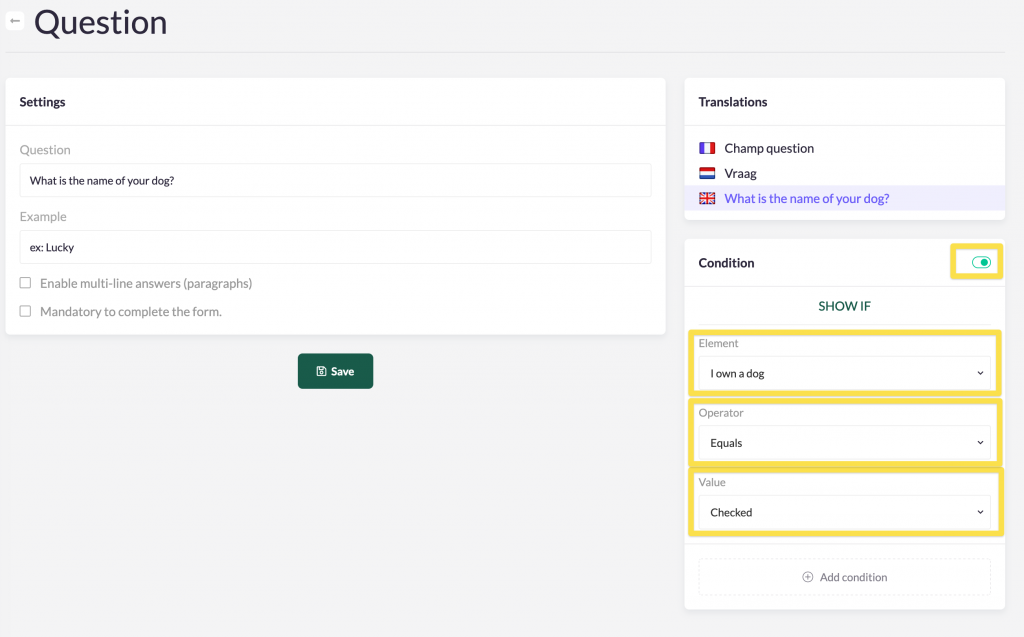
This setup ensures the dog’s name question only appears if the user confirms they own a dog.
Other kinds of conditions
True or false conditions with a checkbox are common. The way we built conditions can be much more powerful though, letting your creativity go beyond what's expected.
You can set conditions on almost every kind of element in your forms. That means that you can display or hide elements based on how any element is being filled by people. A concrete example would be to only display the question on the dog's name to people living in a specific city, like this:
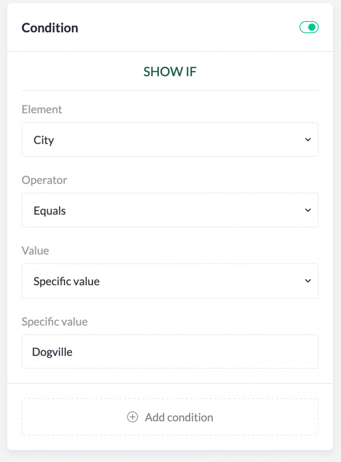
Or only if people have entered their first name, for whatever reason:
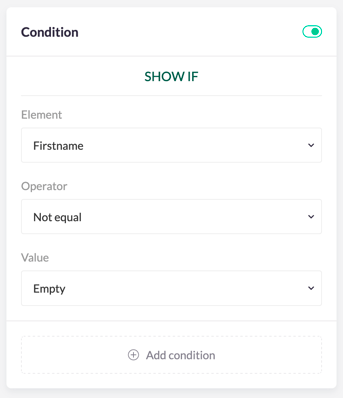
As you can see, conditions are a powerful tool that can serve many purposes. Feel free to be creative using them.