
Are you looking to sell products as a means for your fundraising strategy? The new template feature goes hand-in-hand with our newest 'advanced product' feature. Dive into the steps below to learn how you can leverage these feature to integrate product sales in your fundraising strategy:
1. Create products in campaigns
- Go to ‘Campaigns’ > click on the campaign you want to add products to > ‘Products’ > ‘Add new product’.
- Enter a ‘Title’ and click on ‘Create and set up new product’.
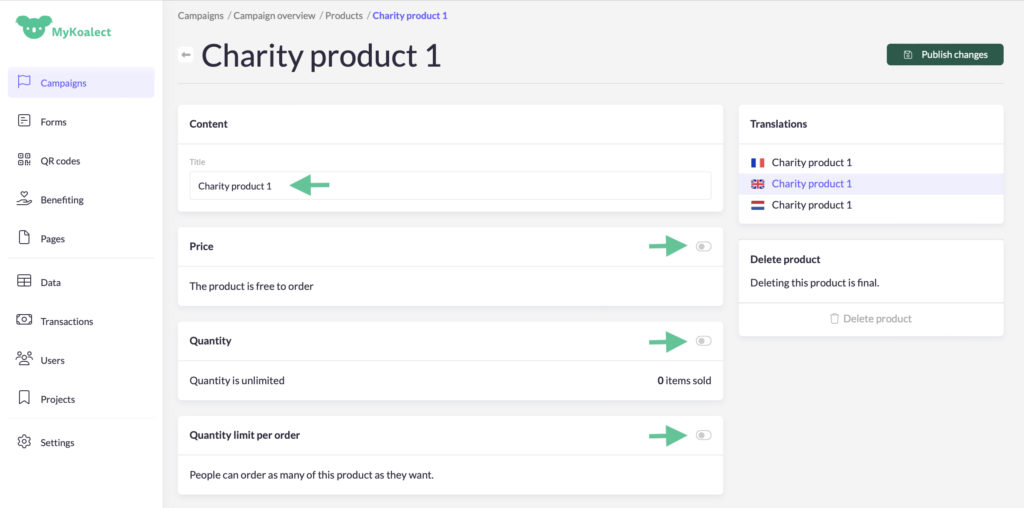
- Set up your product with the following information:
- Add a ‘Title’.
- Choose to keep the product free or put a price on it.
- Establish a specific quantity of products or leave it unlimited.
- Add a limit on the amount of products users can order or allow them to select an unlimited amount.
- Translate your product’s details if necessary.
- Save by clicking ‘Publish changes’.
2. Sell products from the project page
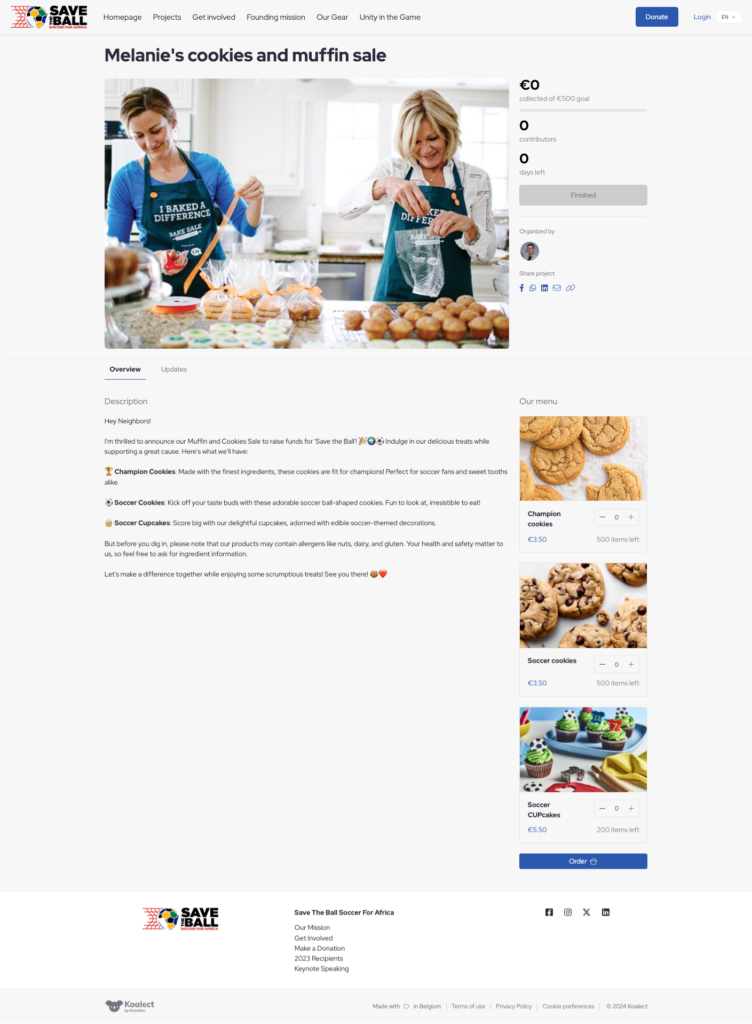
To integrate products on the project page:
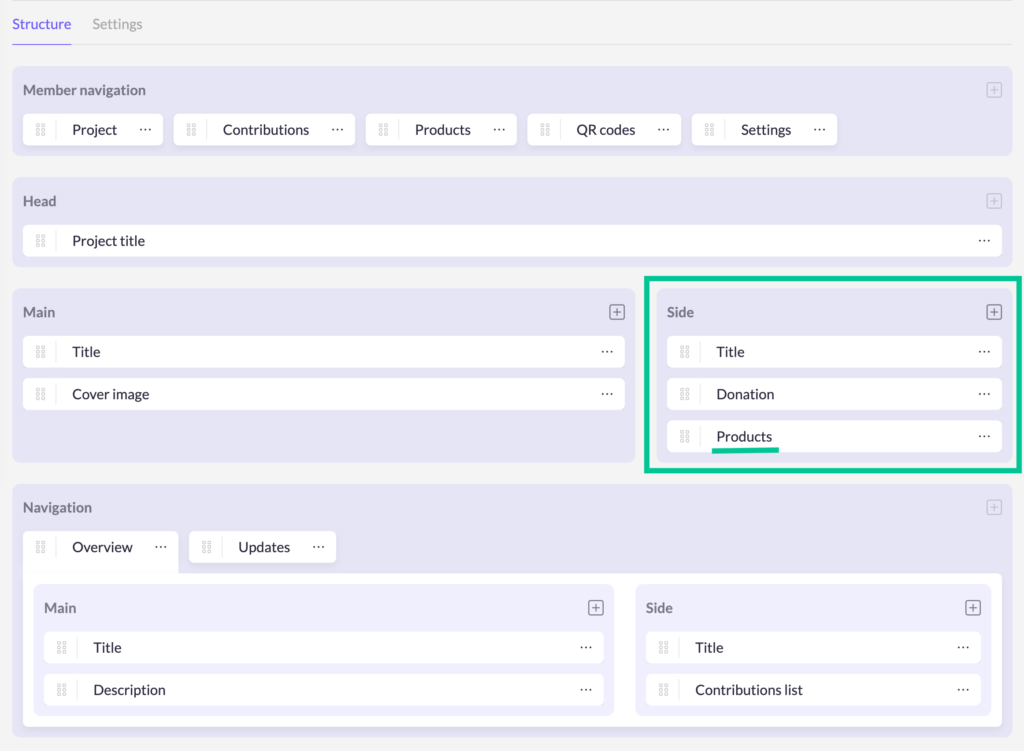
- Navigate to 'Templates' > Add the 'Products' element to the 'Side' tab.
- Navigate to 'Campaigns' > click on 'Project page' > Head to the 'Template' tab and apply the template where you have included products on the project page.
3. Add products in the contribute form
After a user has selected the preferred products on the project page, they complete their purchase by completing the transaction in the contribute form.
It is possible to allow users to still adjust their order by added the right elements to the contribute form, which will be explained below.
- Go to ‘Campaigns’ > click on the campaign you want to add products to > ‘Forms’ > click on the 'Contribute form'.
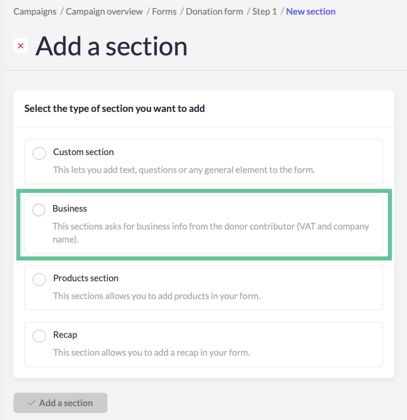
- Select the step you want to add the ‘Product selection’ to. Either as an ‘element’ in an existing block or in a separate ‘section’.
4. Manage your stock and orders
- Go to ‘Campaigns’ > click on the campaign with your products > ‘Products’ > Click on the product you wish to manage.
- Here you can view an overview of your ‘Quantity in stock’ and ‘Quantity ordered’.
- Click on a specific product to modify the ‘Quantity’ of this product in your digital stock if necessary.
- ‘Publish changes’.
