After creating a new campaign, you can make it visible on your platform, allowing users to engage with it and create new projects. To make campaigns visible/active on your platform, ensure these two elements are correctly set up:
1. The campaign has to be published:
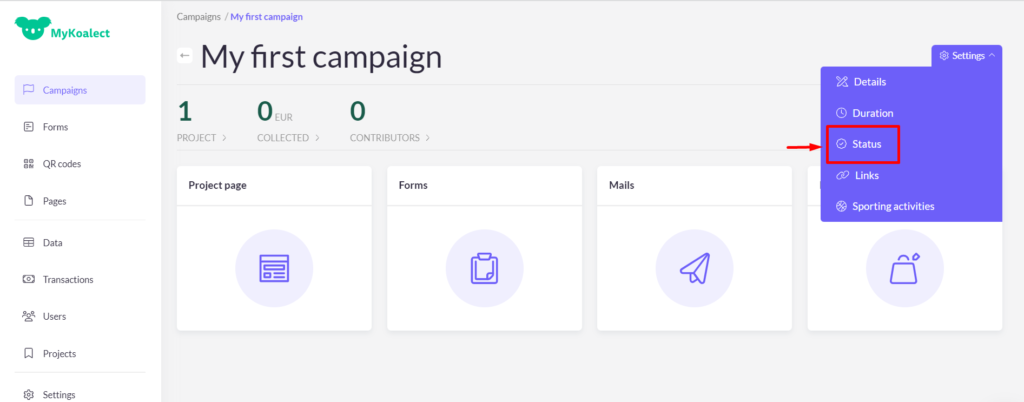
1. Go to ‘Campaigns’ > click on the campaign you want to edit > click on ‘Settings’ in the right above corner > click ‘Status’ > make sure the campaign's current status is set on ‘Published’.
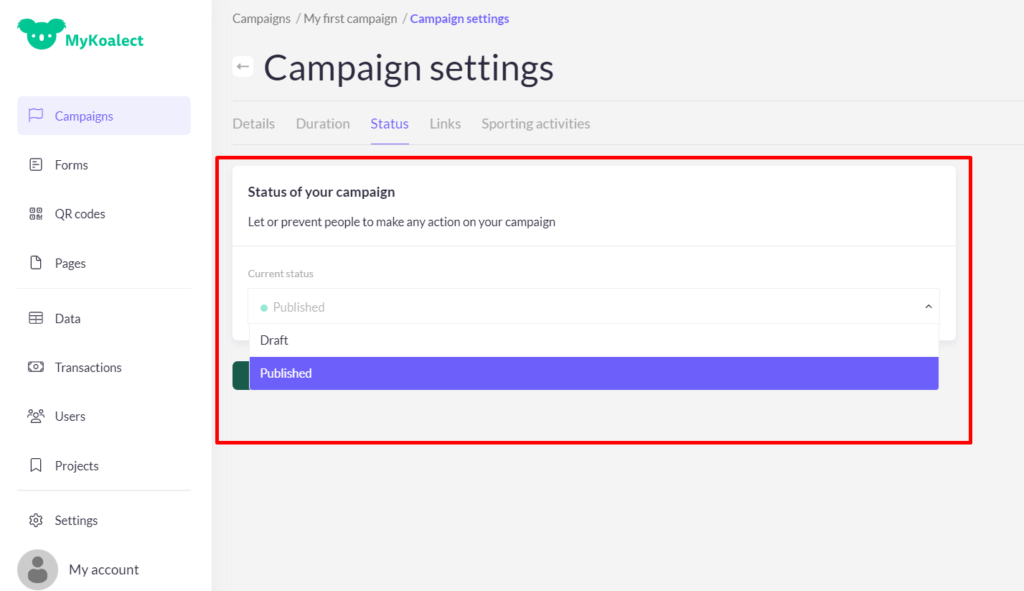
2. Click ‘Save’.
2. The ‘Campaign section’ needs to be added on the correct page of your platform:
1. Go to ‘Pages’ > click on the page you want to show campaigns on.
2. Click on ‘Add section’ and add ‘Campaigns’
3. Click on ‘Add campaign’ and select the campaign(s) you want to display.
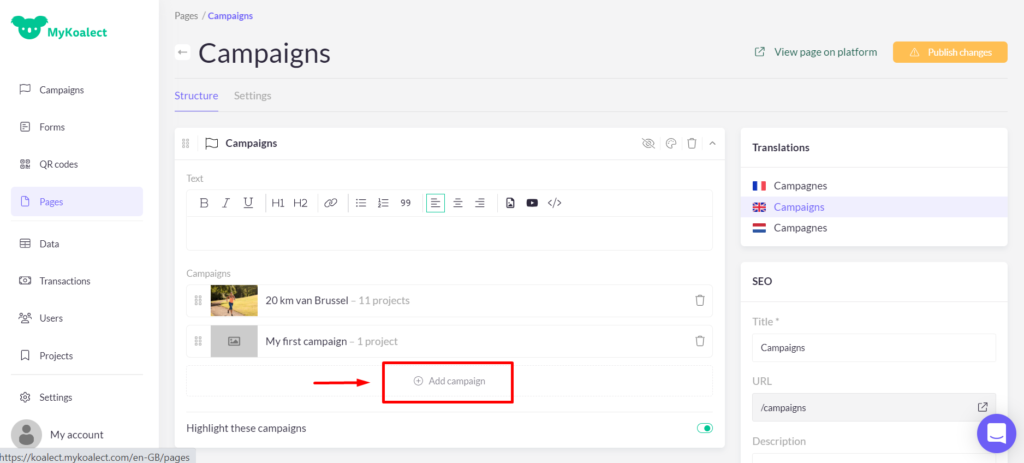
4. Click ‘Save’.
There are two visual formats available for displaying campaigns:
Go to 'Page’ > click on the page you want to show campaigns on > Go to or add the ‘Campaigns’ section toggle ‘Highlight these campaigns’ to display the highlighted version of the campaigns. > Click ‘Save’.
You can switch between these formats if you follow these instructions:
Standard:
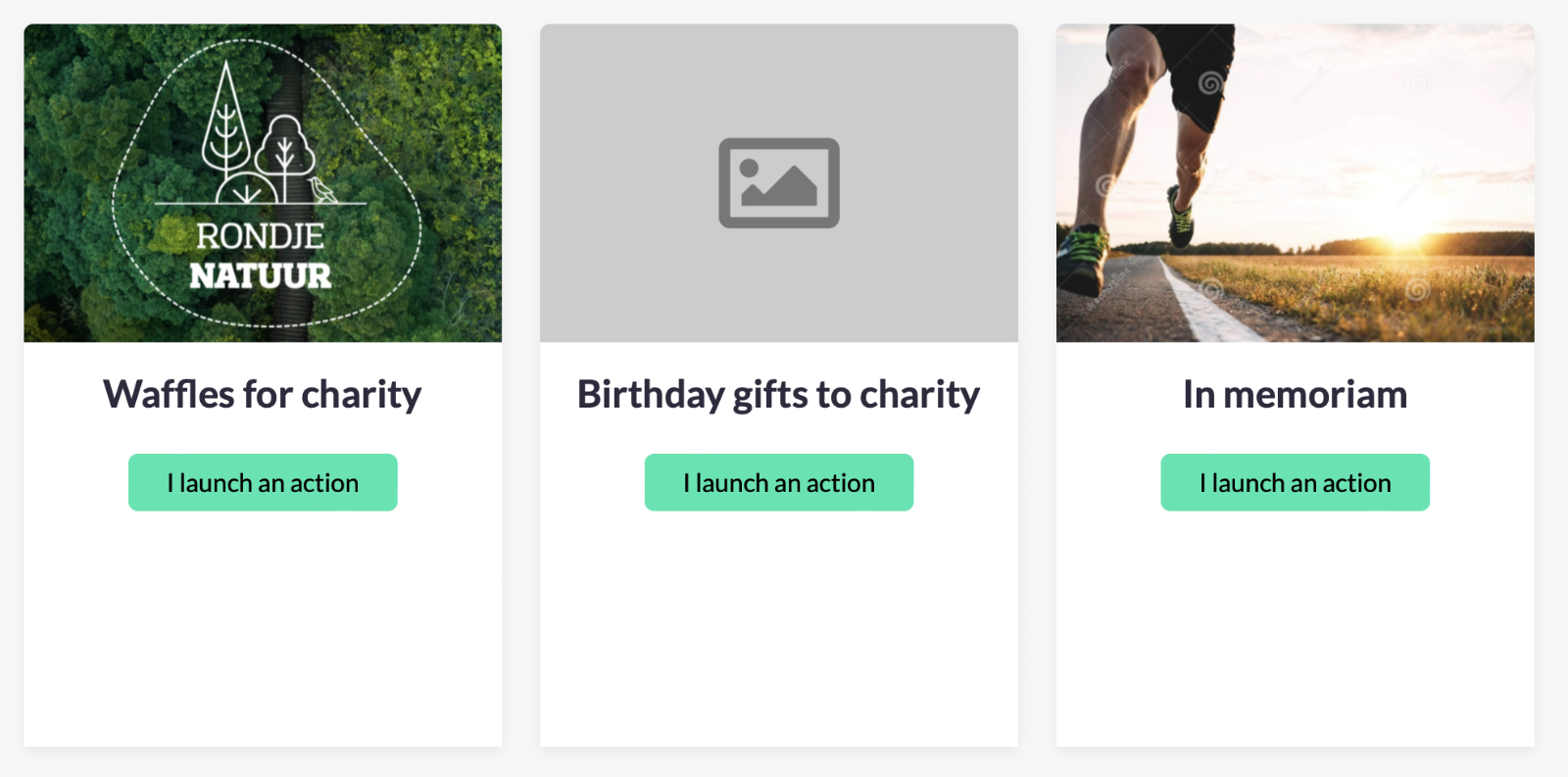
A vertical layout that showcases multiple campaigns but provides quite little space for text.
Highlighted:
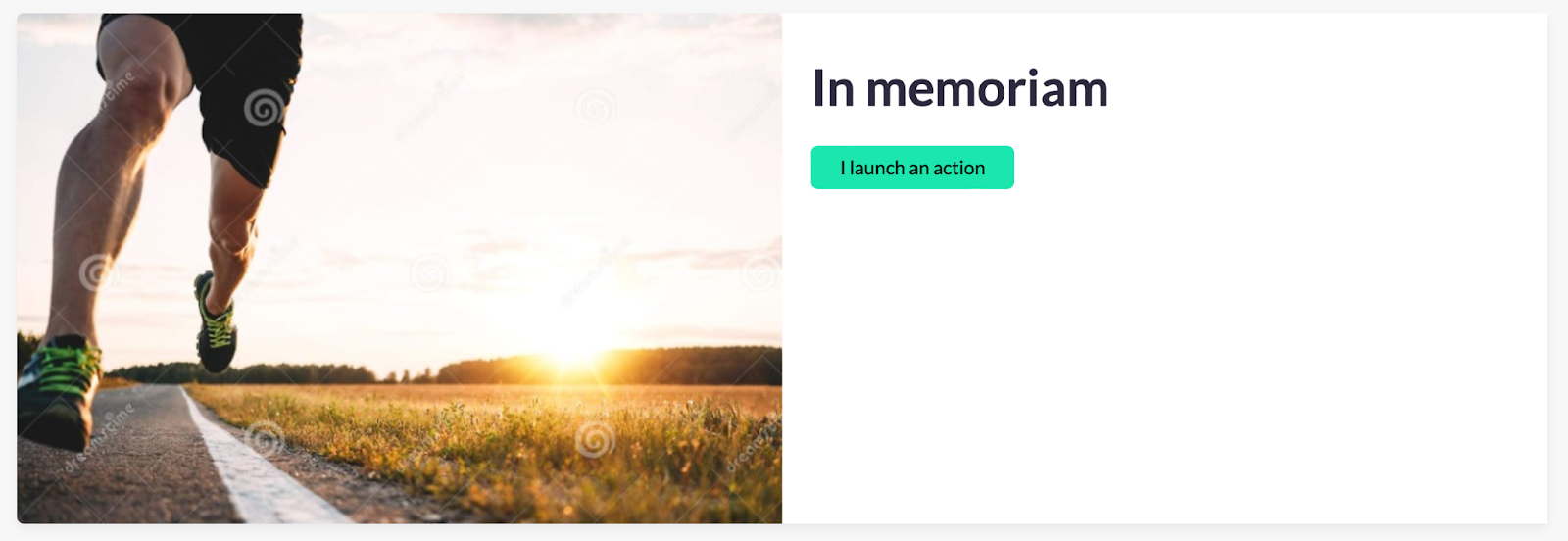
A horizontal layout that provides more space for text when showcasing your campaigns. It will occupy a larger portion of your screen and multiple campaigns are stacked on each other.
Tip: You have the option to include multiple "Campaigns" sections on a single page. This allows you to highlight a few selected campaigns while showcasing the remaining ones in a standard manner.