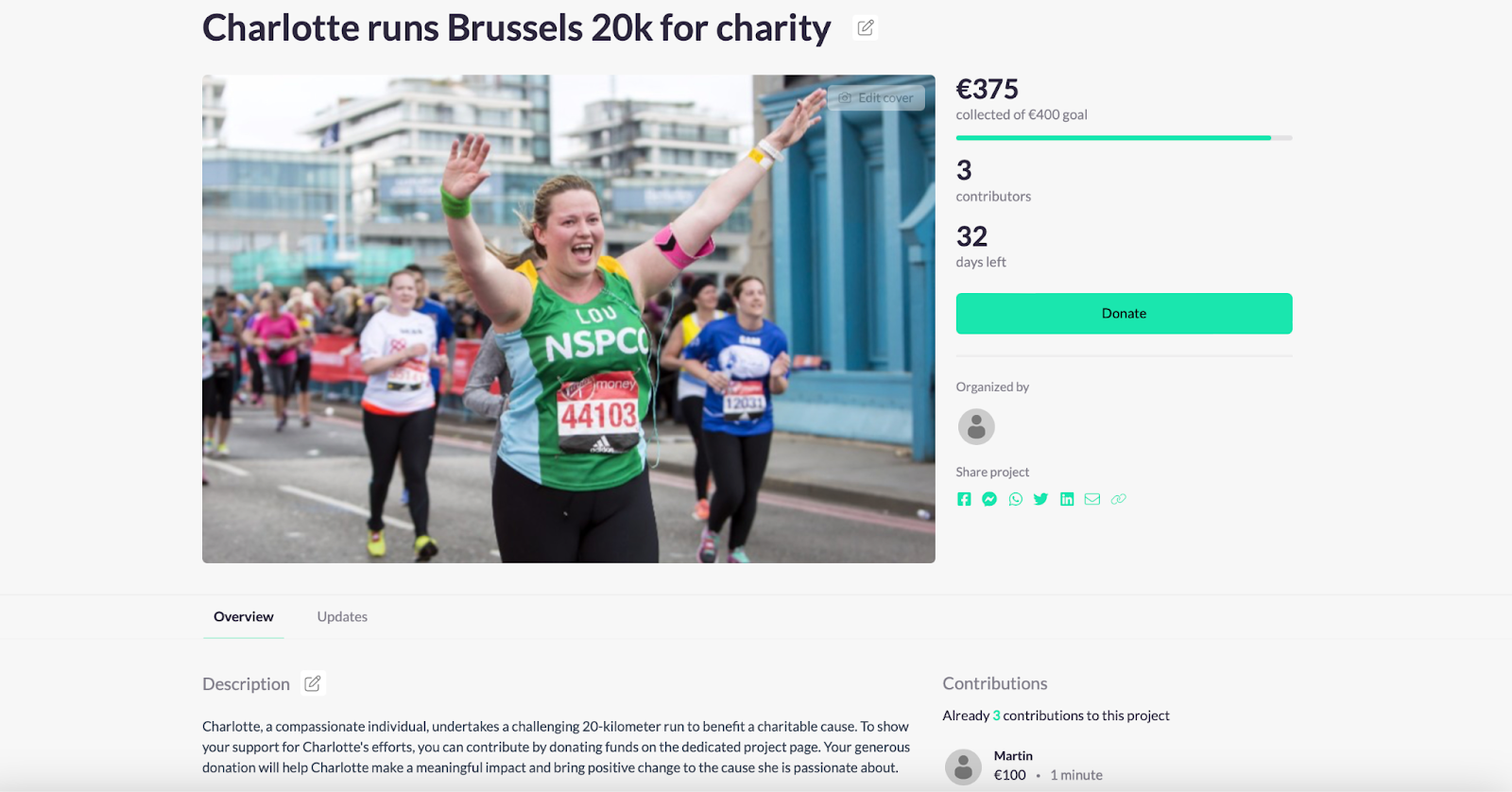
For every campaign your supporters can create their own project page to collect funds for your organisation. The supporter can make their project page personal.
You can configure some default settings of the project pages. To configure this, please follow these instructions:
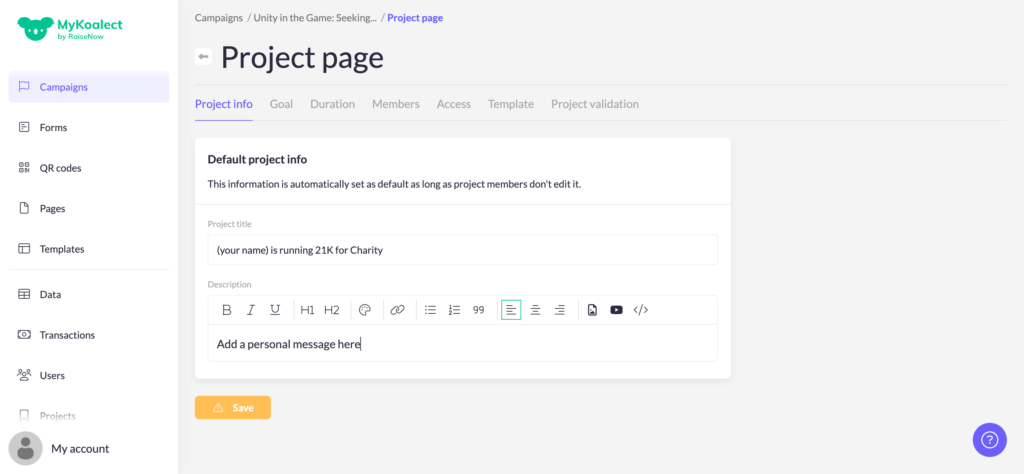
Go to ‘Campaigns’ > click on the campaign you want to edit > ‘Project page’.
Here you are able to edit the specific elements of a default project page of your campaign:
- Project info: Add a default project title and description for every new project created by your supporters. As project owners can choose/change their own title and description, we advice to use this only for helping the project owner to create a title and description.
- Goal: Add a default contribution goal for projects. If you want it to increase the goal with every new project member, make it dynamic.
- Duration: Add a specific beginning and end date to when projects can receive contributions.
- Members: Toggle if you want project owners to be able to invite team other members to their project.
- Access: Toggle if you want to allow project members to download advanced data from their project page. For GDPR compliance reasons, it is advisable to keep this feature turned off for standard campaigns.
- Payconiq QR code (option only visible with Koalect SCAN): Allow project members to collect money for their project page with a QR code.
- Template: Allows you to switch between different templates of project pages.
- Project validation: Toggle if you want that projects have to be approved by you to appear on the platform.
Note: Changing certain settings will only affect newly created projects and will not affect already existing project pages of your campaign. Only changes to the ‘Members’, ‘Access’, 'Template' and 'Project Validation' settings and will instantly apply to all project pages.