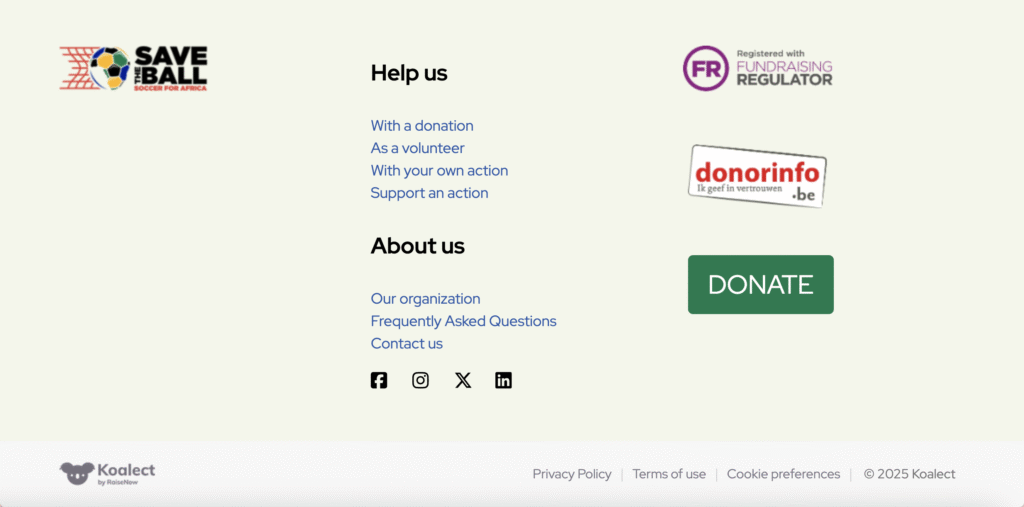
To link pages to your navigation menu's in the header or footer, go to MyKoalect and click on "Pages" in the navigation column. Here you'll find "Header" and "Footer in the top menu.
The Header
- Click "Header" to reach the editor of the header:
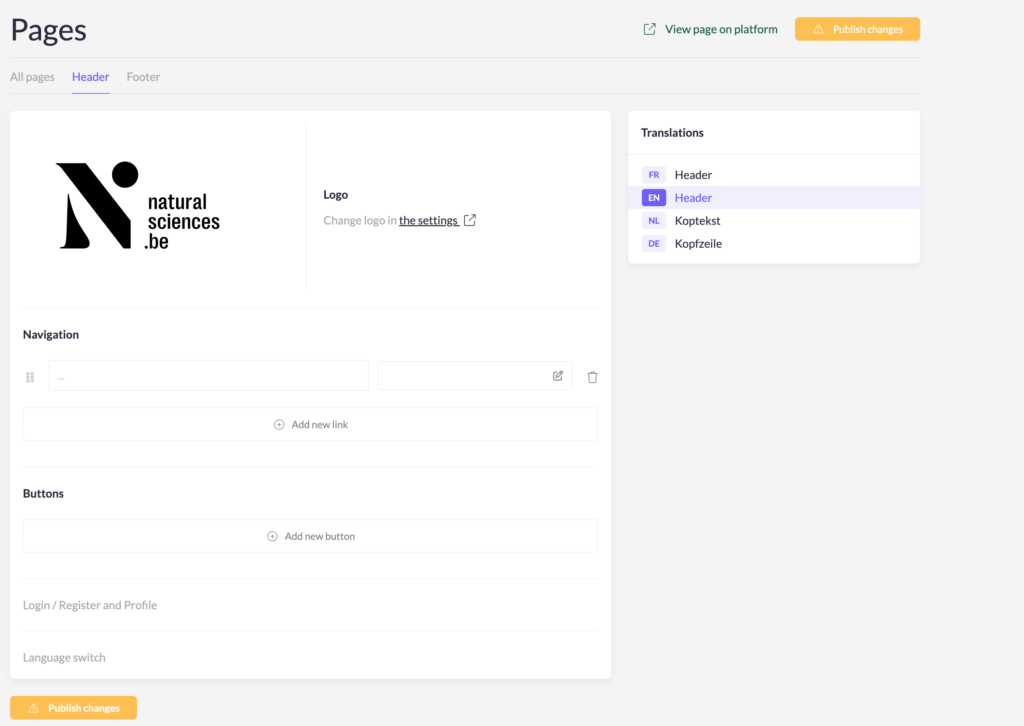
- When adding new navigation links in the menu:
- Click on 'Add new link'
- Fill in the title of your link
- Then click pencil and link a page, campaign, form or custom url's.
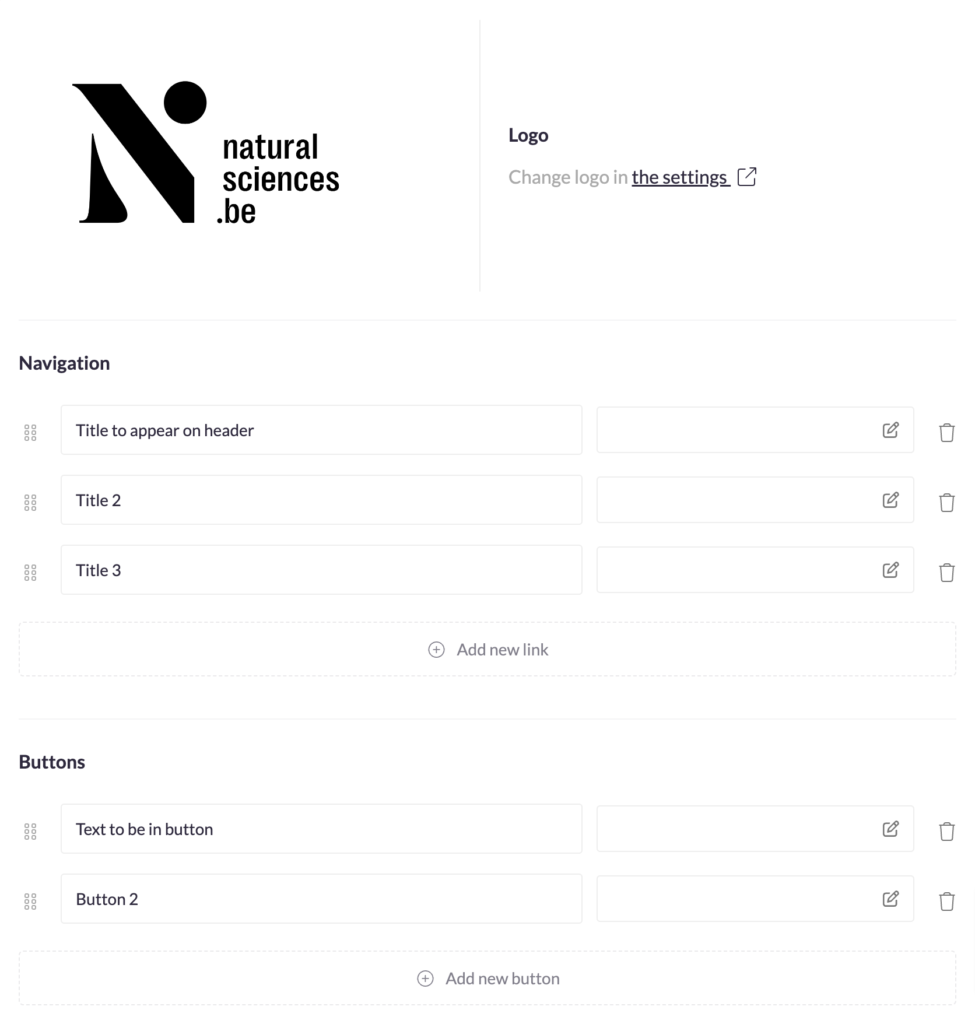
- When adding buttons: Buttons are set on the right of your header.
- Click on 'Add new button'
- Fill in the title of the link behind the button
- Then click pencil and link a custom urls, page, campaign or form.
Tip: Keep the number of buttons to a minimum. Ideally, use just one or at most two.
The Footer
To edit the footer of your platform, follow these instructions:
-
Go to the Pages section in the left menu, then click Footer at the top.
- The footer is split into a maximum of 4 columns.
- Click “Add new section” to insert a logo, text, title, links, or social networks.
- Reorder, hide, or delete sections.
- Use the right panel to change text colour or background colour/image.
- Switch languages in the Translations panel to edit content per language.
- Click “Publish changes” to save and go live.
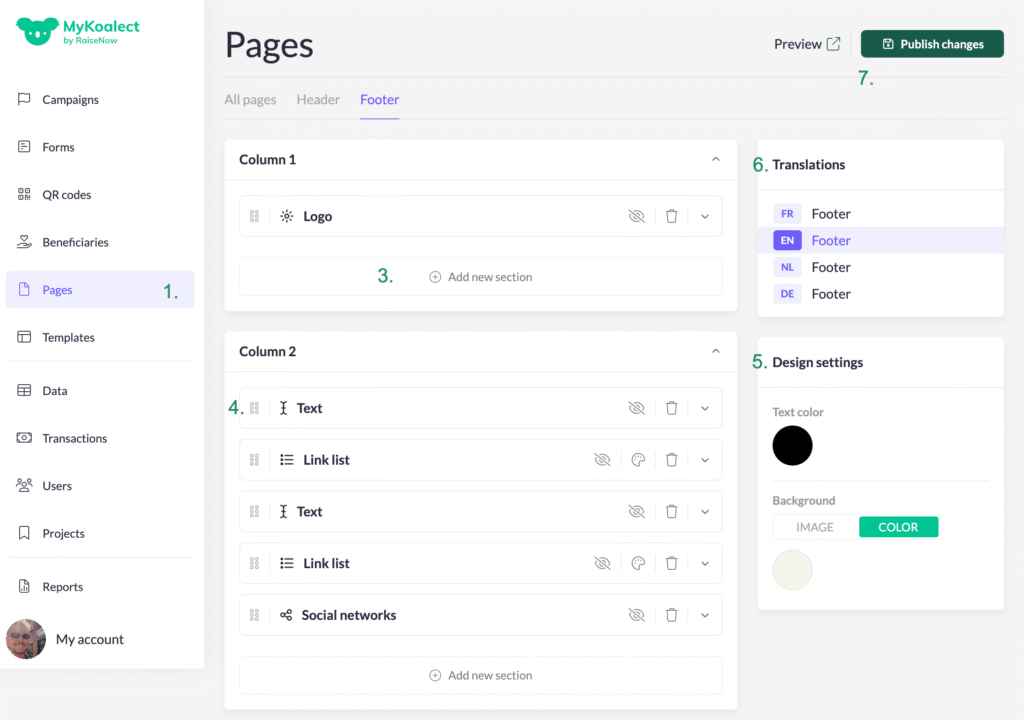
- Once published, click on preview to see the final design.